Have you registered your machine?
Download the MyDyson™ app to register. Plus, fast access to tailored guides, 24/7 support, and roller replacement reminders.
Alternatively, you can register online here.

-
Speeds
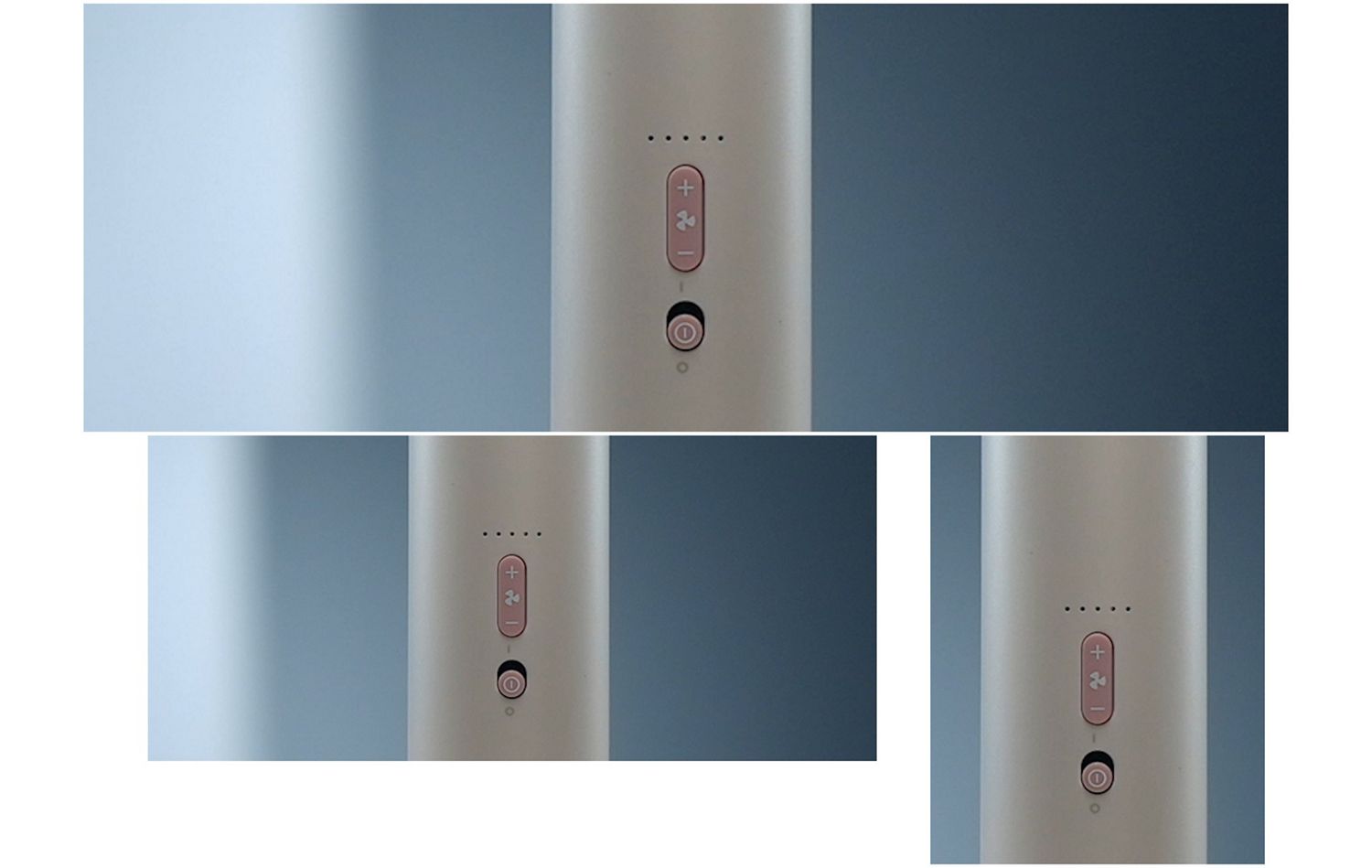
Press the up and down buttons to increase or decrease airflow speed. The LED will indicate which level it’s on.
-
Boost mode
On fan speed 5, hold down the up button to enable Boost mode, for extra power up to 25m/s.¹
Airflow direction
This is a carousel with slides. Use Next and Previous buttons to navigate, or jump to a slide with the slide dots.
30° forward air projection
Angle the nozzle forward at 30° if you’re sat at your desk or holding the machine.
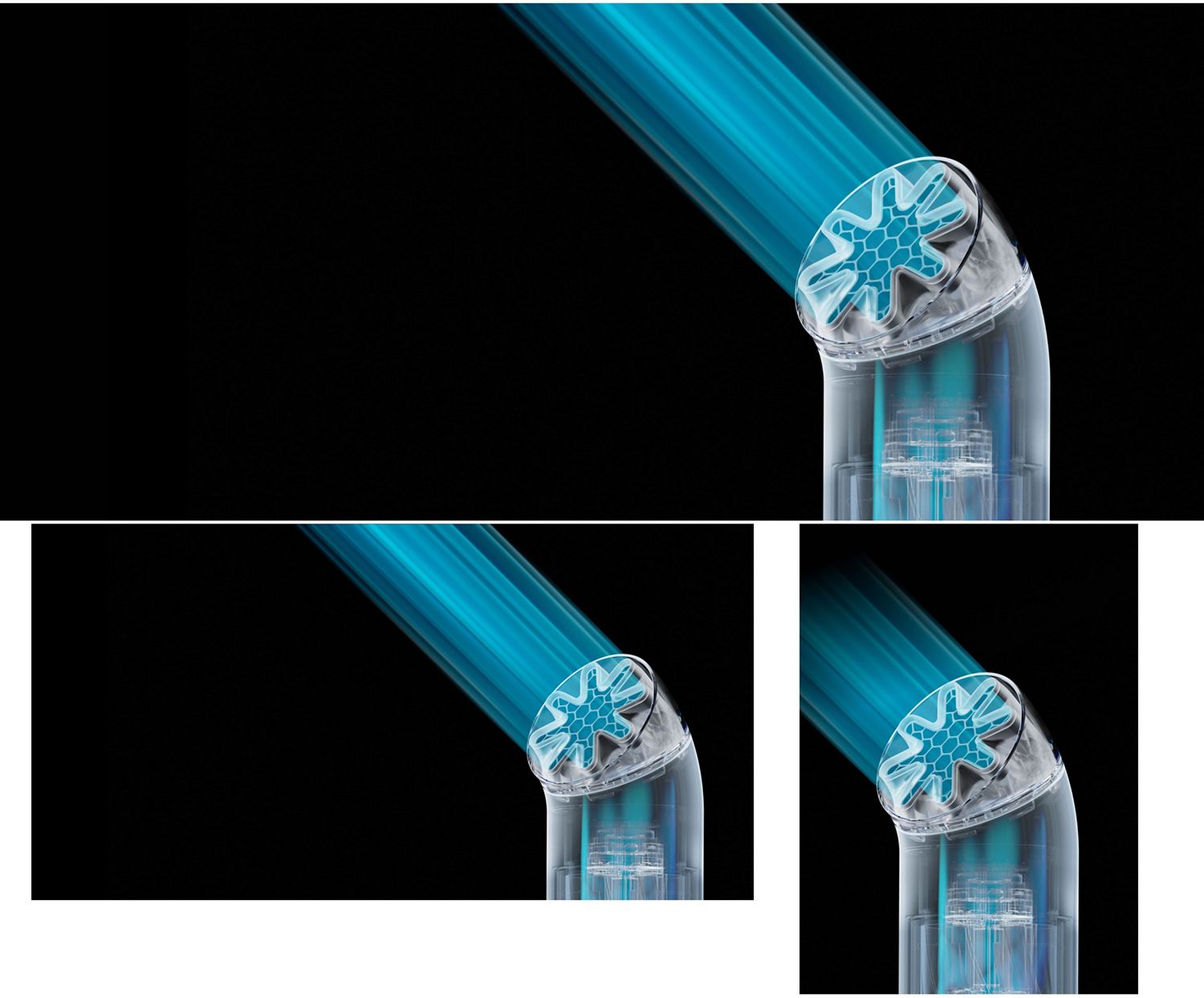
30° forward air projection
Angle the nozzle forward at 30° if you’re sat at your desk or holding the machine.
90° upward air projection
Twist the nozzle 90° to aim the airflow upwards if you’re on-the-go.
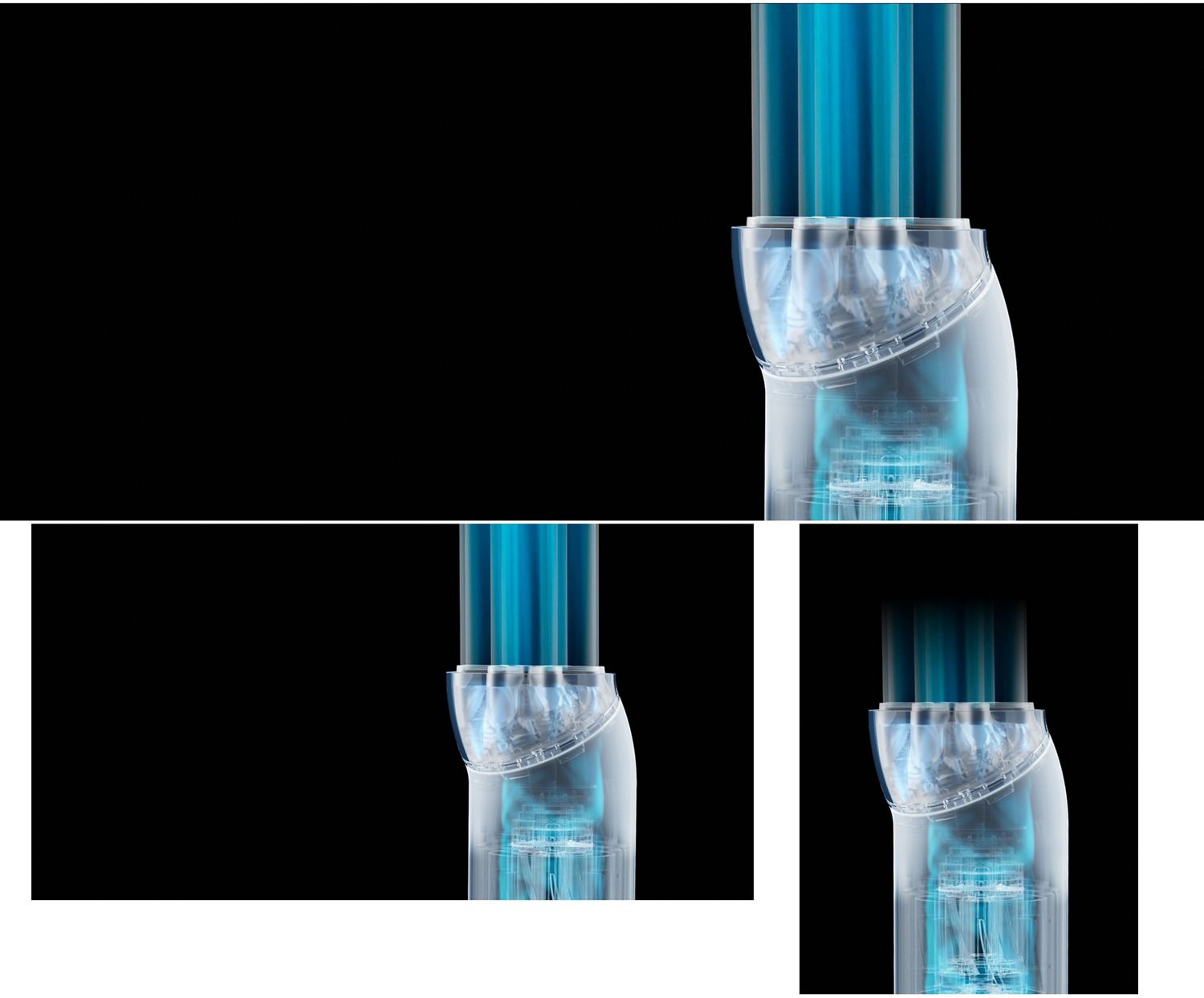
90° upward air projection
Twist the nozzle 90° to aim the airflow upwards if you’re on-the-go.


LED indicator
The battery charge LED indicator can be found on the rear of the machine.
-
Check battery level
Ensure the power button is in the off position. Press the up button to check battery level, indicated by the 5 LEDs on the front of the machine.
-
Identifying critical battery level
If the battery is less than 5% charged the rear LED will flash red.
Charging
Details on how to charge your fan.
-
Connect USB-C
Insert the cable into the charging port found on the back of the fan.
-
Battery is charging
The rear LED will pulse white when the fan’s battery is charging.
Frequently asked questions
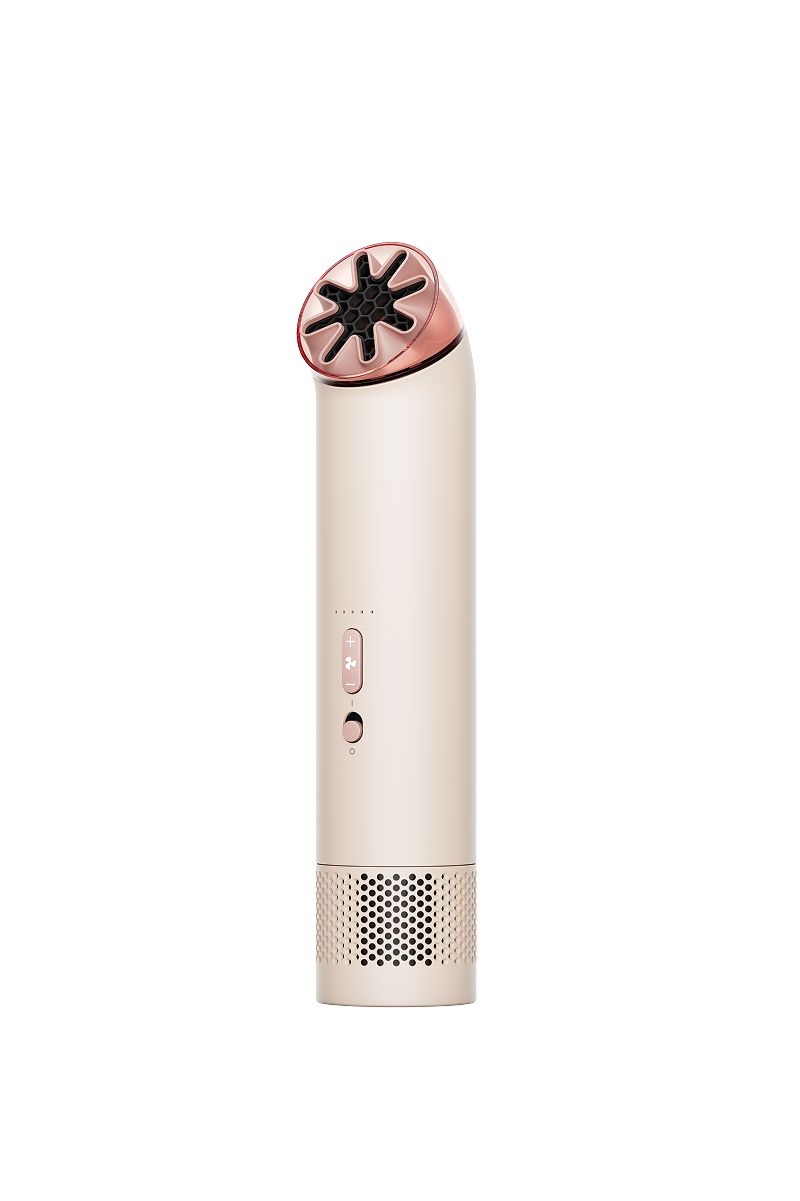
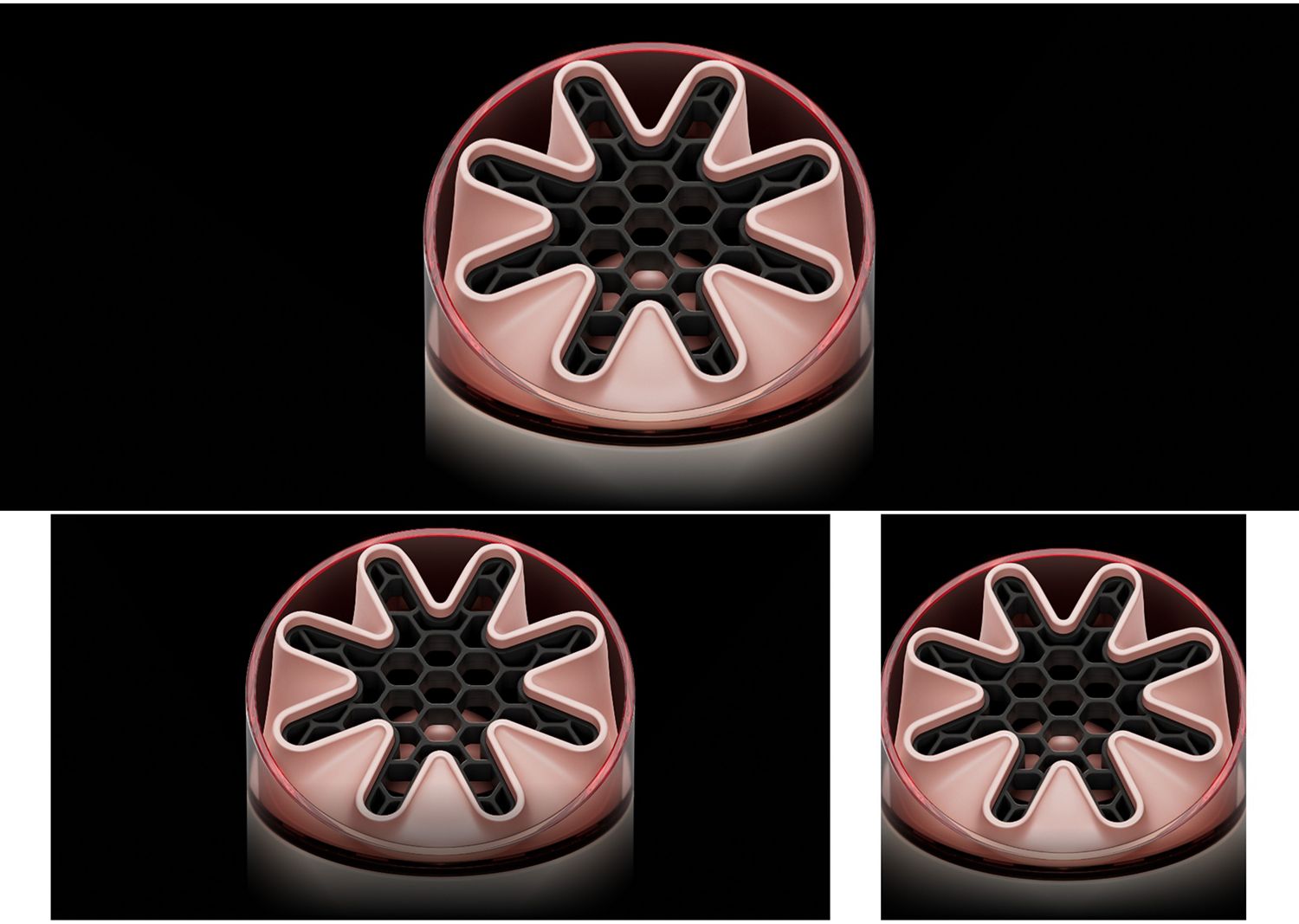
Getting started with your Dyson HushJet™ Mini Cool fan is quick and easy. Fully charge the fan using the included USB-C charging cable. Once charged, press the power button to turn it on. You can tailor your cooling using five fan speeds plus Boost mode and simply twist the nozzle 360° to direct airflow exactly where you want it – whether you’re holding it, wearing it, or using it on a desk.
To clean your Dyson HushJet™ Mini Cool fan, turn it off and unplug it. Use a soft, dry cloth to wipe the exterior and air inlet. Use a soft brush to clean the nozzle. The bladeless design and honeycombed mesh help prevent dust buildup, making maintenance quick and easy. Avoid using water or cleaning sprays directly on the fan.
Apple, the Apple logo, and Siri are trademarks of Apple Inc. App Store is a service mark of Apple Inc.
Google Play, the Google Play logo, Google Assistant are trademarks of Google Inc.